Sunday, September 24, 2023
Reading Bluetooth LE (BLE) sensor data advertisements in CircuitPython
Friday, June 30, 2023
Clocks that set themselves!
The Adafruit Clue-Clock
I'm always frustrated when I have to reset a bunch of clocks after a power outage. Did you know that setting the time on an IOT device can be easy when you add support for the Bluetooth Current Time Service? (On the SIG site you will want the first doc, "Current Time Service 1.1"). In this blog post I show some of the code I wrote for the Adafruit Clue using CircuitPython and the adafruit_ble library. I've even got a Youtube video! to show the device and step through the code.
There's also a handy Windows app that is the server side of the time setting; it will broadcast out the current time. Download "Simple Bluetooth Time Service" on the Windows store; that's how I set the time. The complete source code for it is on Github. Update: see also my [Govee Ink Display](ElectronicsProjects/2023-Adafruit-Python-InkGoveeListener at main · pedasmith/ElectronicsProjects (github.com) project; it has a newer and easier-to-use version of the clock code.
In the video I step through three interesting features of the clock.
Feature 1: Display stuff to the screen
We'll want to print text to the screen; this is done with the clue.simple_text_display() object. The clock uses the simple_text_display, so we can display several lines of text, but nothing fancier.
A key point (that took me far to long to figure out!) is that after you update one or more a lines of text, you must call the .show() method -- otherwise, nothing gets displayed!
Sample Code
from adafruit_clue import clue
colors = ((0xff, 0xff, 0xff),)display = clue.simple_text_display(title="Clock",title_scale=2, text_scale=4,title_color=(0xa0, 0xa0, 0xa0),colors=colors)str = "{:02d}:{:02d}:{:02d}".format(currHour, currMinute, currSecond)clue_display[0].text = strclue_display.show()
The simple_text_display is documented on the circuitpython site.
The text_scale value of 4 fits a time display with a format of HH:MM:SS (8 characters long) with room for two more characters (eg, enough room for an AM/PM indicator, if desired)
The title_scale is relative to the text_scale.
The colors set the colors of each line. I set it so tht the time and date are white, and the day (and the bluetooth scan results) are blue.
Feature 2: Use the Real Time Clock
The chip used to track time accurately is the "real time clock" -- without it, the code would slowly drift. Fun fact: the first IBM PC did not include a battery-backed real-time clock chip. Every time you turned on the computer, you had to enter the date and time.
The real-time clock uses struct_time for many operations; it's just a tuple where you can grab values by index. the current hour, for example, is index 3.
The real-time clock needs power to work; if it loses power, it will stop stracking an accurate date and time (it says "real time clock", but it does dates, too). How we set it is the topic of the next section.
The CircuitPython rtc module is a delight to use: there's just a simple way to set the initial value and a simple way to pull out the current time.
Feature 3: Connect to Bluetooth Current Time Service
Now we get the hard stuff: reading data from an external Bluetooth "Current Time Service" source. The idea is that a nearby PC will broadcast out a "current time" (there's a standard for this); the clock will pick it up and use it to set its time.
To make it work, you should have already added the adafruit_ble to your lib directory. It's not on the list of libraries in the Adafruit Clue documentation.
The bulk of the Bluetooth code is in BtCurrentTimeServiceClient.py. There's two critical classes in that file: the BtCurrentTimeServiceClient class which matches the Bluetooth Special Interest Group (SIG) standard and which is compatible with the Adafruit CircuitPython Bluetooth setup, plus a helpful wrapper class BtCurrentTimeServiceClientRunner class which listens for Bluetooth advertisements and connects to the time service.
You will want to look at the code while reading this description :-)
BtCurrentTimeServiceClient
The BtCurrentTimeServiceClient class is less than 20 lines of code. The Adafruit CircuitPython Bluetooth system isn't too hard to use, but there isn't a very good tutorial on it. Hopefully this explanation will help!
The BtCurrentTimeServiceClient class exists for only one reason: it's the "glue" between the Bluetooth system and your code. When you get an advertisement for a Bluetooth device you want to connect to, you'll provide this class (the class and not an object) and will get back an object that's mostly this class (it will have been updated)
The object you get back will only be valid until the connection is broken. In the code, the connection is broken almost as soon as the data is read.
class BtCurrentTimeServiceClient(Service):
uuid = StandardUUID(0x1805)
data = StructCharacteristic(
uuid=StandardUUID(0x2A2B),
# Don't need to provide these; they should be discovered
# by the Bluetooth system.
# properties=Characteristic.READ | Characteristic.NOTIFY,
struct_format="<HBBBBBBBB"
)
def GetTimeString(self):
(y, m, d, hh, mm, ss, j1, j2, j3) = self.data
retval = "{0}-{1}-{2} {3}:{4}:{5}".format(y, m, d, hh, mm, ss)
return retval
The data value is set to be a StructCharacteristic. But when you examine the data later on (like after it's been updated by the remote side!), it will instead be a tuple of the data, parsed by the struct_format string. You just have to know from other sources what the data values actually mean.
BtCurrentTimeServiceClientRunner
The BtCurrentTimeServiceClientRunner is the class you'll actually call to get the Bluetooth current time data. Just call Scan, passing in a bluetooth "ble object; it's the Bluetooth from the clue device (```ble = adafruit_ble.BLERadio()```). There aren't any other methods in the class that should be called.
The runner Scan method will scan for Bluetooth advertisements for a set amount of time (15 seconds in this case); the scans can complete in less time, so I loop around as needed. The inner loop of Scan calls ScanOnce to do a single advertisement scan, returning a connected Bluetooth device. Once this method has a connected Bluetooth device, we hook up the service connection with the ConnectToCurrentTimeService method (yeah, I'm using the word "connected" here in kind of two different ways). Once we have a service connection, we can pull out the time data directly.
The ScanOnce returns a connected connection to the remote device (or None, of course). It does a single advertisement scan, up to a maximum amount of time, looking for an advertisement that says it supports the current time service. When one of those is found, we connect to that device. In my case, the device will just be my laptop when it's running the Simple Bluetooth Current Time Service app.
The ConnectToCurrentTimeService creates a 'live' (connected) service object given a connection to a device.
To convert a connection to a bluetooth device into a useable per-service object, you need to provide a class with a uuid that matches the service you need to use, plus a data object which needs to be one of the Characteristic types (for example, StructCharacteristic). When you "get" an object from the connection, the smart connection "array" will create a brand-new object for you, of the class you specify, that's hooked to (connected to) the live Bluetooth object. As part of this, the "data" value in the class, which had been, e.g., a StructCharacteristic, will now just be a tuple of data. Reading that tuple will get you the latest data.
To recap: the Scan method will scan advertisements for an appropriate BT device, will connect to it, will make a service connection, read the characteristic data, put that data into a tuple, and return the tuple. In case of errors, it will just return None.
Once the tuple of date is read, we just set up the real-time clock at about line 74 of the code.py file. Once this happens, the clock will be updated!
You can make this work for your device, too -- just pop in the BtCurrentTimeServiceClient.py, and call the Scan() method with a BT radio. Just don't forget to include the adafruit_ble library on your device!
Good luck!
Sunday, April 23, 2023
Hints on injecting input into Windows (use 'ScanCode' for Unicode!)
Use ScanCode to inject Unicode characters!
Friday, April 14, 2023
Hints on using CircuitPython's adafruit_ble Bluetooth
Some APIs and libraries for Bluetooth are a joy to use: they fit right into our basic concepts of how the protocol work, and match the kinds of tasks we want to do.
And then there's the adafruit_ble library.
I've been working on a little project using the very nifty AdaFruit Feature nRF52840, and there's a lot to like about it. They got a ton of the details just *french kiss*, starting with the font on the main device (the 840 is in extra-large letters so you can quickly tell one from the other) and running to their library of compatible "feather" devices and integration into CircuitPython.
But the ble library? They have clearly spent a ton of time and effort on it (which I thank them for). But everything in it is just that little bit backwards from everything I know about Bluetooth.
Example: why doesn't this code work?
Why this is horrific, and how much time I wasted
- using a different kind of UUID (UUID versus StandardUUID)
- getting the UUID from a different place (afafruit_ble versus bleio)
- testing to make sure that the 'in' wasn't just always returning true by trying a fake UUID
- connecting at different times
- stopping the scan before getting data
- doing a time.sleep(5) before connecting or getting data
- connecting to the address versus the advertisement
- getting the service twice
- pairing
- iterate through the services (this was really weird)
- disconnecting when I was done
- putting it in a try/except block to investigate the exception
Doc shortcomings examples
What should they have done?
Handy Links
Friday, March 31, 2023
WTF is “Exact time 256” : diving into Bluetooth SIG documents
WTF is “Exact time 256”
The Bluetooth Special Interest Group (SIG) has a metric ton of Bluetooth LE device specs in a massively confusing pile. In this walkthrough I’ll show how I figured out the details of a fairly simple LE protocol. In particular, I’ll be creating something that needs to match the “Current Time Service”, services # 0x1805.
TL/DR: the good document is the “Gatt Specification Supplement”.
On the Bluetooth.com
site, you want “Specifications” and under specification you’ll need a tab open
for both the “Assigned numbers” and the “Specifications” directory.
In “Assigned numbers”, there’s two important documents. The
first is “Assigned
Numbers Document”. It’s a giant list of all of the GATT services by name
and all of the characteristics. The second is “Gatt
Specification Supplement”.
In the “Specifications” directory, find the listing for the
"Current Time Service” and click the link
to get the service page. It's got a bunch of the lest useful programming documents ever. The only document that’s interesting for most
developers is the Current Time Service 1.1 PDF file. Click the link
to read the long, complicated document.
Page 9 starts to be interesting: the Current Time Service
supports three characteristics: the “Current Time” (page 10), “Local Time”, and
“reference Time”. On page 10 it’s mentioned that we’ll be reading the Exact
Time 256 field. This is the first bit of useful (and critical) information
in the spec.
BTW, when they say “Unknown”, it’s not clear to me which
“Unknown” value they mean. But in the Assigned Numbers document there are 8 time that
“Unknown” is mentioned; all of the numeric values (6 of them) are zero. The
others are weird strings for something having to do with telegrams. Or not,
it’s a Bluetooth SIG spec, so nothing is clear.
At this point you might wonder what the actual bytes are.
The Bluetooth SIG doesn’t care that you’re wondering. You might even try typing
“Exact Time 256” into the main page search box on the main page, but you won’t get any hits.
However, you can find it in the Assigned numbers where it has number 0x2A0C in
the “Characteristics by name” and “Characteristics by UUID” section.
Note that in the “Specifications” it lists “Current Time” as
the characteristic; that’s characteristic 0x2A2B.
And then finally, take a look at the GATT Specification Supplement,
page 78, section 3.62, “Current Time”. It lists the bytes: there’s an Exact
Time 256 and then a U8 “Adjust Reason” which says why the time changed. Even better, there's a decent overview of the Exact Time 256 fields!
And here the path through the forest of all Bluetooth knowledge ends. If only there was some way to know that the "supplement" is in fact the useful document, and not the pile of other docs.
Wednesday, March 15, 2023
It takes a lot of people to ship a complex product
I'm a Program Manager (PM) for one of Those Big Companies. I don't actually program except as a hobby, and I don't manage. Where I add value is making sure that what we're building is what our customers need.
"I could build a replacement with just ___ people"
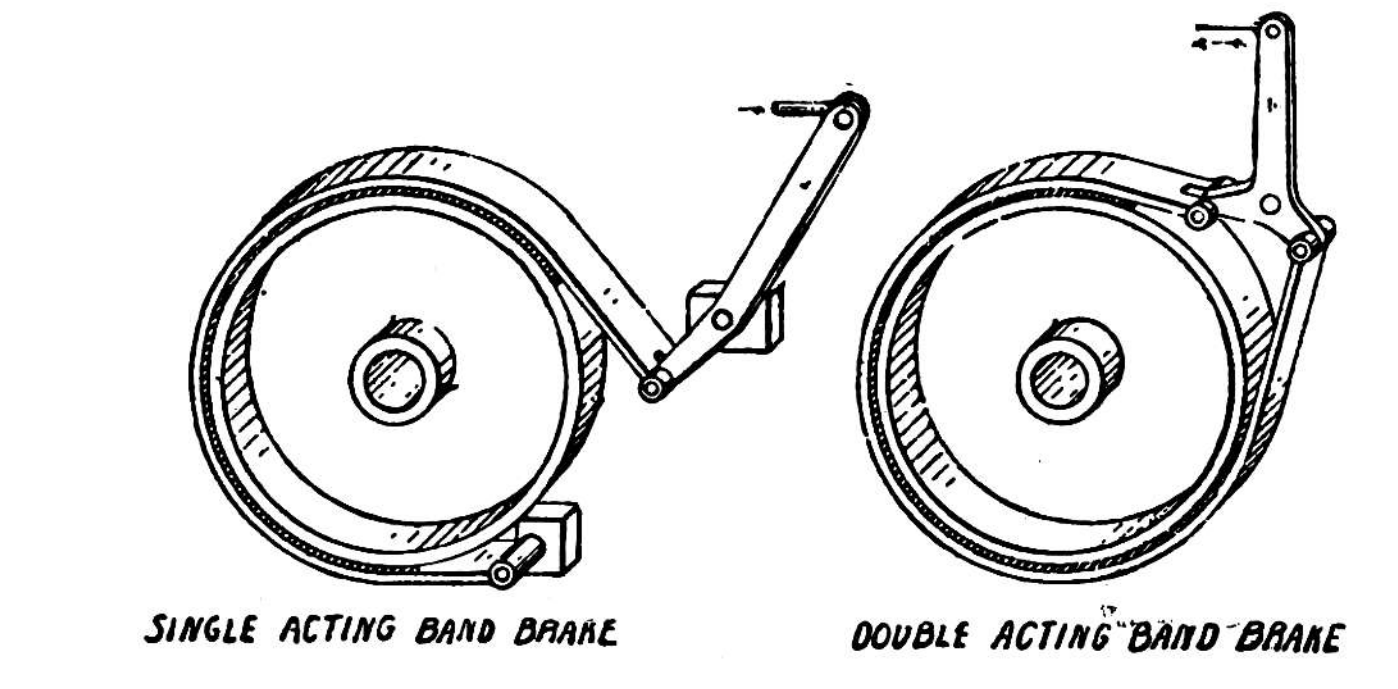
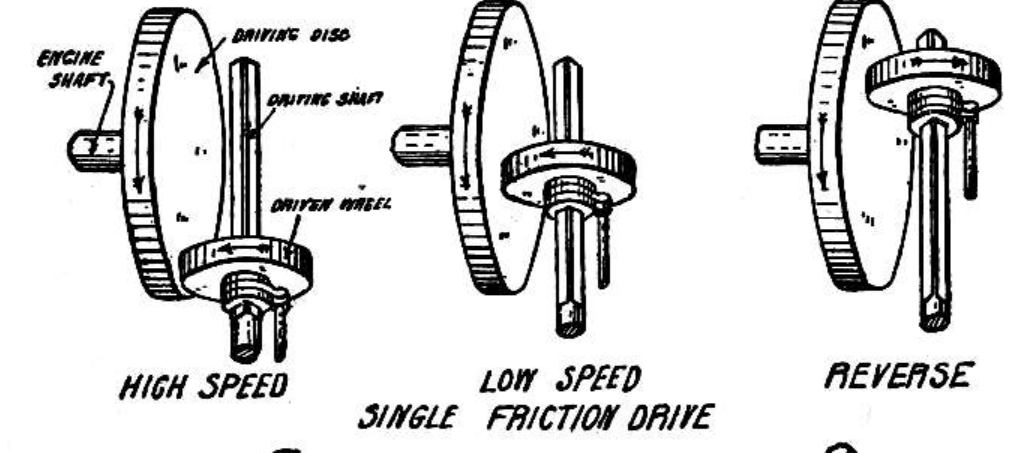
No, you couldn't, if it's a complex project. I was recently reminded of the true history of the automobile: a long, hard slog by an enormous number of people to get each element of a car to actually work. In particular, take a look at Motor-Car Principles on Project Gutenberg. Among the many, many things that had to be painfully figured out
How to stop a car. The book lists a whole series of brake types (none of them disk brakes like in modern cars)
How an axle works. Car axles are not wagon axels, and you can't use one instead of the other.
Building a transmission. This is something steam engines, for example, simply don't have. A steam engine on a train is directly connected to the wheels with no intervening transmission.
Making a piston. Steam engines, in contrast to car engines, are forgiving: as long as the timing is roughly correct, the steam engine will work. A gas engine has much higher tolerances.
The book goes on with a long, long list of technologies that are unique to cars.
Moral of the story: some projects are pretty simple and can be done with a small team (or even just one person). But once you get to new technology, it's a quagmire that requires an extraordinary amount of work just to know what needs to be done, and from there to co-ordinate the work so that all the parts show up on time.
Thursday, March 2, 2023
Fixing "The type or namespace 'Windows' could not be found" error CS0246
"The type or namespace 'Windows' could not be found" solution!
Every time I install a new version of Visual Studio, I run into just a metric hand-full of errors from previously working projects. The projects haven't changed, but suddenly Visual Studio is seemingly incapable of finding the "Windows" namespace.
My Solution: run the Visual Studio Installer". Pick your installed version and click Modify. The modification you probably want is to under Universal Windows Platform development in the Optional section. Look at the list of available Windows SDK and just install them all (assuming you have enough disk space).
There's no harm (AFAICT) in getting them all, and it will save you heartache and frustration down the line.
This entire process is just a cluster. What's more common than building apps for Windows using the compiler tools from Microsoft that are specifically designed to build Windows apps? Well, the only thing more common then developing windows apps is seeing yet another place where Visual Studio once again makes development more painful.
For me, the #1 reason I get the error is that I don't have enough of the Windows SDKs installed. By default, the Visual Studio installer only installs the "most recent" SDK. You might think that's enough, but it's not.
Each project will have a reference path that looks like this:
<Reference Include="Windows.Foundation.UniversalApiContract">
<HintPath>..\..\..\..\..\..\Program Files (x86)\Windows Kits\10\References\10.0.22010.0\Windows.Foundation.UniversalApiContract\14.0.0.0\Windows.Foundation.UniversalApiContract.winmd</HintPath>
</Reference>
Note how the HintPath specifies exactly one particular SDK. If you have a more recent version, it doesn't count even though the contracts are specifically designed to be upwards compatible.
What's worse, Visual Studio loves to kind of silently update your project files, so you'll silently be updated, potentially breaking the project on a different computer.
Error CS0246 The type or namespace name 'Windows' could not be found (are you missing a using directive or an assembly reference?)